Sections and checklists

Table of Contents
Introduction
Sections are physical divisions of a location in RapidBar. For example:
Location: Main Street Restaurant inc.
Sections: Back bar, Bar fridge, Kitchen fridge, Kitchen freezer, Dry stockroom, Keg and beer fridge, etc.
Sections have 2 main purposes:
- To divide the inventory counts in smaller chunks
- To make it easier to troubleshoot counting errors by letting you compare current counts from sections to previous counts for the same sections.
Adding new sections
Web app
- Type in the name of the section (e.g. Bar, Kitchen, etc)
Mobile app
In the RapidBar mobile app:
- Tap the 3 dots on the top right corner
- Select “Add new section” option
- Give your new section a name
- Tap “Save”
Section checklists
The section checklists serve 2 purposes:
- Make inventory counting faster by displaying the products present in a section instead of having to scan or search them in your database
- To act as a reminder of the products present in a section to make sure you don’t forget any product in your count
Editing sections checklists
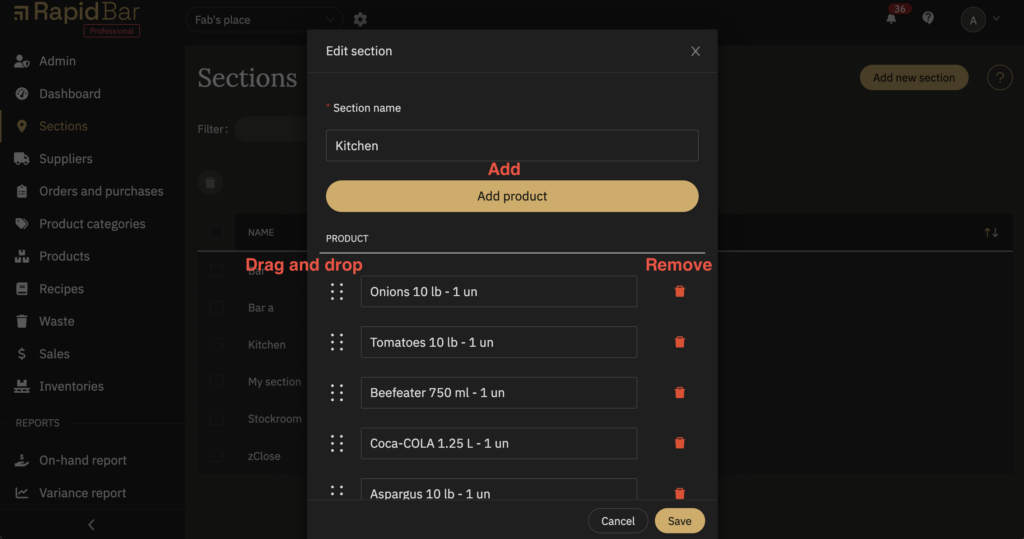
RapidBar allows you to edit checklists in 3 ways:
- Add new products to a section checklist
- Remove products from a checklist
- Customize the product order of a checklist so that the auditors will see the product in the same order as they are place in your section
To edit a checklist:
- Select the section for which you want to edit the checklist
- Add, remove or drag products or batch recipes to change their order
- Save your changes