How to Record a Purchase in RapidStock
Recording purchases in RapidStock ensures your inventory levels remain accurate and your supplier data stays up to date.
There are three different ways to record a purchase, depending on your workflow and the information you have available. First, navigate to the Orders and purchases page:
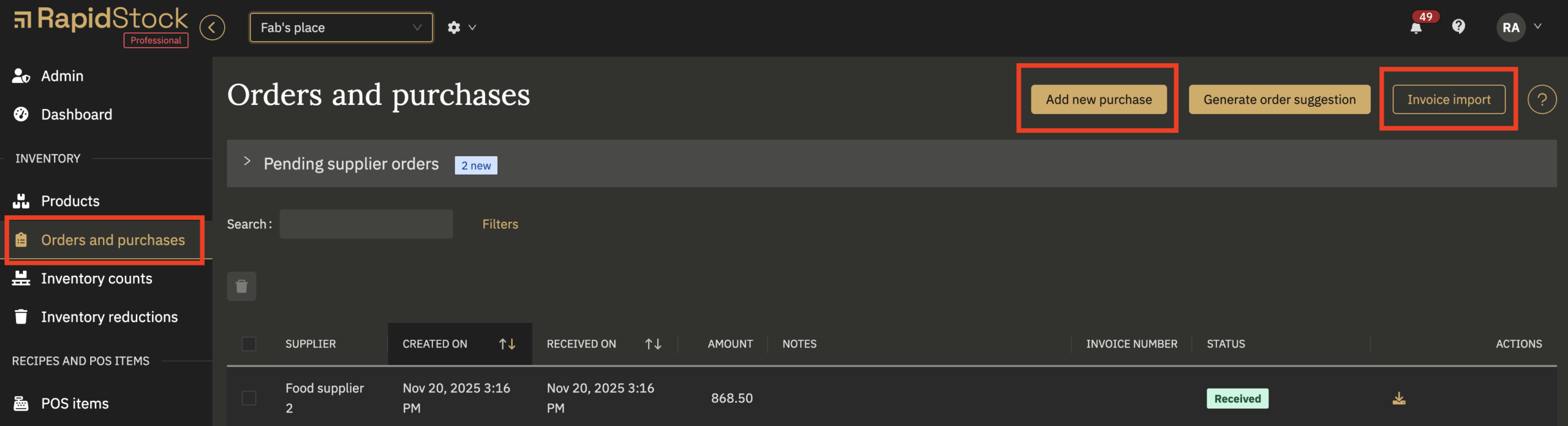
Warning: RapidStock Event users must select a Storage location to view or add purchases.
1. Send Your Invoice by Email (Best)
This is the most automated option and is ideal if you receive invoices by email from your suppliers.
How it works
- Send or forward your invoice as an attachment to your unique @rapidstock email address
- RapidStock will automatically process the invoice and the purchase will be uploaded to the pending invoices section:

How to get your unique email address
To obtain your unique @rapidstock email address, please contact RapidStock support.
2. Upload an Invoice (PDF or Image)
This method allows RapidStock’s AI to automatically extract purchase information from your invoice.
Steps
- Click on Upload invoice
- Select your supplier from the list
- Upload your invoice in PDF or image format
- RapidStock’s AI will analyze the invoice using the reference numbers
- If a product is not found in your database, Start typing a few letters of the product name
- If the product already exists in your database, it will appear in the suggestions
- If the product does not exist, use the link at the bottom of the suggestion list to create a new product
- Review the extracted data and confirm the purchase
3. Record a Purchase Manually
This method is ideal when you want full control over the purchase details or when you don’t have an invoice file.
Steps
- On the orders and purchases page, click on Add new purchase
- Start typing a few letters of the product name
- If the product already exists in your database, it will appear in the suggestions
- If the product does not exist, use the link at the bottom of the suggestion list to create a new product
- In the purchase modal, click Add product
- Complete the purchase details and save
- If some products do not exist yet, you will be asked to create them